Connecting to Data
Data sources are connections to where your data lives. Wallabi connects to your data and queries it on your behalf — your data stays in place, and no database credentials ever leave the Wallabi app.
Supported Sources
Section titled “Supported Sources”Wallabi connects to:
- Databases — Snowflake, BigQuery, Postgres, and others
- Applications — HubSpot, Google Analytics, and other SaaS tools
- Files — CSV, XLS, Google Sheets, Parquet
Need data that doesn’t come from an external system — a lookup table, a mapping, or a set of reference values you curate yourself? See Custom Tables.
Setting Up a Data Source
Section titled “Setting Up a Data Source”Data sources are configured in the Wallabi app, not in your code. To add one:
- Sign in to the Wallabi app
- Navigate to Data Sources
- Click Add data and follow the connection wizard for your source type
- Once connected, the data source is automatically available to your apps
When you add a new data source, it’s available only to you by default. You can share it with your organization from the data source settings. If a colleague has already shared a data source, you can start building with it right away.
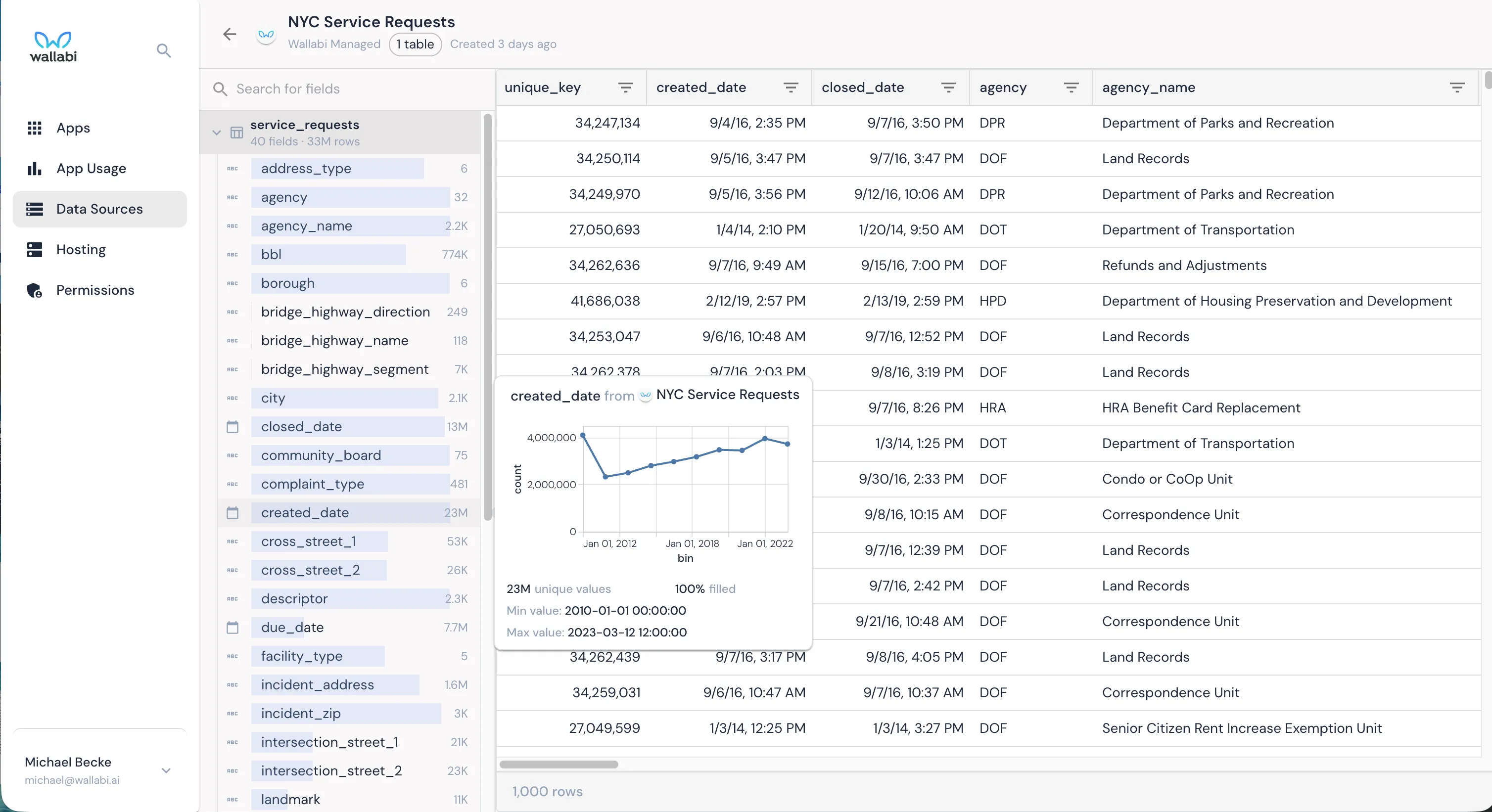
Once connected, you can explore your data source’s tables, fields, and distributions directly in the Wallabi app:
Exploring Your Data
Section titled “Exploring Your Data”With your dev server running, you can ask Claude Code to help you explore your data:
- “What data sources are available?” — See all connected sources
- “Describe the tables in [source name]” — View table structures, columns, and relationships
- “Show me a sample of data from [table name]” — Run a quick query to see what’s there
This is a great way to understand your data before you start building an app. Claude Code has direct access to your data sources and can answer questions about what’s available.
How Data Flows
Section titled “How Data Flows”When someone opens one of your data apps, here’s what happens behind the scenes:
- Your app asks Wallabi for data — it sends a query plan describing what data it needs
- Wallabi runs the query on your database — your database credentials are stored securely in the Wallabi app, never in your code
- Results are sent to the browser in an efficient format — optimized so your app can filter, sort, and explore the data interactively without waiting for the server
The important thing to know: your data stays in your database. Wallabi queries it, optimizes the results, and sends them to the browser. No data is copied or stored elsewhere.